Remote interview setup: how to look and sound professional on Zoom
Setting Up Your Professional Interview Space
Setting Up Your Professional Interview Space
Choosing and Preparing Your Interview Location
Your interview space sets the tone for your entire conversation with potential employers. Begin by identifying a quiet, private room where you won't be interrupted by family members, roommates, or pets. Close the door and silence notifications on nearby devices to eliminate unexpected disruptions.
Position your desk or chair away from windows to prevent harsh backlighting that can obscure your face on camera. Natural light works best when it comes from the side or front, illuminating your features evenly. Before your interview, remove visible clutter, personal photographs, and any items that might distract your interviewer or appear unprofessional on screen.
Conduct a test run at the same time of day as your scheduled interview. Lighting conditions change dramatically throughout the day, and what looks perfect at noon might cast unflattering shadows at 4 PM. This rehearsal allows you to adjust your setup and identify potential issues before they matter most.
Optimizing Your Lighting Setup
Proper lighting transforms your video presence from amateur to polished professional. Position your primary light source directly in front of you at eye level—ideally a natural light source like a window or full spectrum LED light with adjustable brightness [11]. This front-facing setup ensures even facial lighting and prevents the silhouette effect that occurs when backlighting obscures your features [11].
Avoid positioning yourself with a window or bright light behind you, as this creates shadows that make your face difficult to see [1][16]. The interviewer should always be positioned between the light source and the camera [7]. Use diffused light sources, such as lampshades or white sheets, to create flattering illumination without harsh shadows [20]. Position a secondary light at a 30-degree angle to fill shadows on the opposite side [20]. Finally, adjust your screen brightness to balance with your room lighting, reducing eye strain during longer interviews while minimizing monitor glare if you wear glasses [20].
Creating an Appropriate Background
Your background speaks volumes before you say a word. Choose a neutral, uncluttered setting—a plain wall, bookshelf, or tidy home office—that keeps the interviewer's focus on you rather than your surroundings [16]. Position yourself 3-4 feet from the wall to create depth and prevent harsh shadows that flatten your appearance on camera.
While virtual backgrounds gained popularity during the pandemic when family medicine residency programs conducted interviews entirely virtually [2], use them sparingly. Blurred backgrounds are generally perceived as more natural than digital image backdrops [16], but only if your computer handles them without glitches or pixelation around your edges. Test thoroughly beforehand.
Before each interview, scan your entire frame for anything inappropriate or unprofessional—laundry, personal photos, or cluttered surfaces. Remember that maintaining eye contact during video calls requires participants to act against natural instincts [12], so eliminate visual distractions that might tempt your gaze away from the camera.
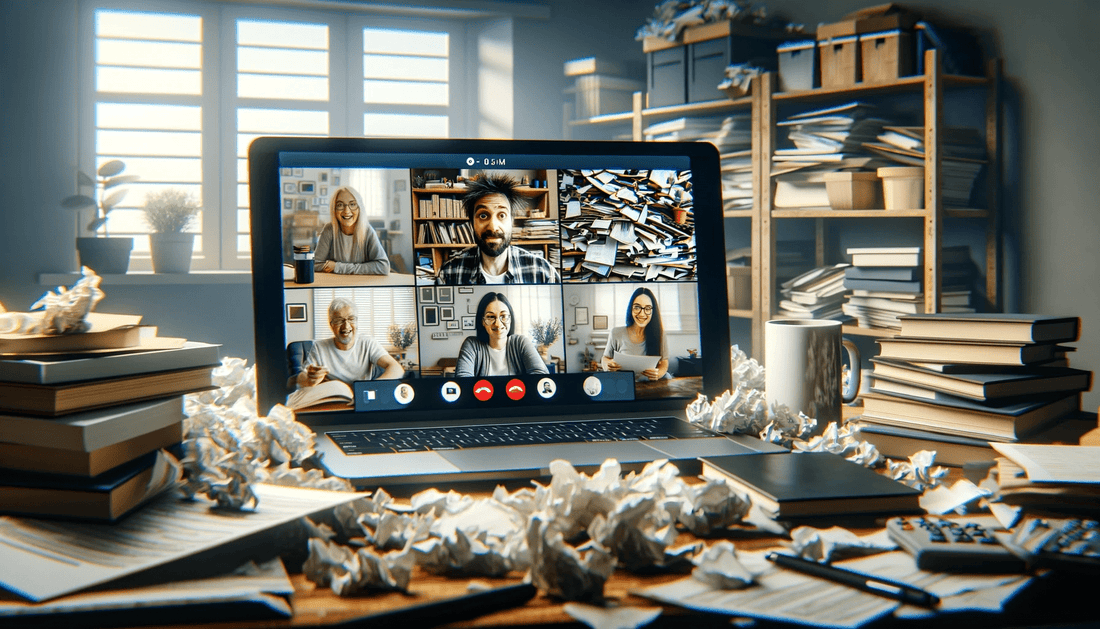
A comparison of professional versus cluttered backgrounds during a virtual meeting.
Mastering Your Audio and Video Technical Setup
Camera Positioning and Framing
Your camera angle can make or break your first impression. Start by positioning your camera at eye level—this creates a natural, engaging perspective that mirrors in-person conversation. Stack books under your laptop or invest in a simple stand to achieve this height. Looking down at your camera creates an unflattering angle that diminishes your professional presence.
Frame yourself from mid-chest up, leaving a small amount of space above your head. This composition feels natural and allows room for hand gestures without cutting off your movements. Position yourself approximately arm's length from the camera for optimal framing—this distance captures enough detail to convey your expressions while maintaining comfortable visual boundaries. If you're using a built-in camera microphone, staying 4-6 feet away ensures better audio quality [7].
Before your interview begins, ensure your camera is stable and secure. A shifting camera during conversation appears unprofessional and distracts from your message. Test your setup by recording a brief video to verify everything remains steady throughout.
Audio Equipment and Sound Quality
Clear audio quality matters just as much as your visual presentation. Your laptop's built-in microphone often captures ambient noise and produces tinny sound, so invest in an external microphone or quality headset to ensure your voice comes through crisp and professional.
Position your microphone 6-8 inches from your mouth. This distance captures your voice clearly while avoiding distracting breathing sounds or plosives that occur when speaking too close to the mic. Before any interview, test your audio levels thoroughly. You want to sound neither whisper-quiet nor distorted from speaking too loudly—aim for consistent, moderate volume.
Room acoustics significantly affect sound quality. Hard surfaces like bare walls, windows, and tile floors create echo that makes you difficult to understand. Combat this by adding soft materials to your space: hang curtains, place a rug on the floor, or position yourself near upholstered furniture. These simple additions absorb sound reflections and deliver cleaner audio to your interviewer, ensuring your qualifications shine through without technical distractions.
Conducting Technical Preparation and Testing
Testing your equipment well before interview day prevents last-minute technical disasters. Run a complete system check 24 hours ahead, then perform a final verification 15 minutes before your call. This two-stage approach catches both persistent issues and day-of problems.
Close all unnecessary applications before joining the interview. Background programs consume bandwidth and processing power, potentially causing video freezing or audio dropouts. Built-in laptop and monitor microphones generally produce lower quality sound and pick up more background noise compared to external microphones [11], making bandwidth conservation even more critical. Verify your internet connection speed meets the platform's requirements, and keep a mobile hotspot ready as backup.
Practice runs reveal hidden problems. Schedule a test call with a friend using the identical video platform your interviewer will use. Recording a practice pitch allows for the evaluation of audio and visual quality before the interview [20]. Position your camera at eye level to create natural engagement [15], and use wired headphones rather than Bluetooth to prevent audio latency [18]. This preparation transforms technical uncertainty into confident readiness.
Presenting Yourself Professionally On Camera
Body Language and Posture for Video
Your physical presence on camera speaks volumes before you say a word. Research shows that between 70% and 93% of communication is non-verbal [5], making your body language a critical component of interview success. Start by sitting upright with your shoulders back and feet flat on the floor—this posture projects confidence and energy that translates through the screen [11].
Eye contact requires special attention in virtual settings. Rather than looking at the interviewer's image on your screen, look directly at the camera when speaking [1]. This simulates genuine eye contact and creates a stronger connection. Position your camera at eye level to avoid unflattering angles [20].
Use natural hand gestures within the camera frame to emphasize key points, but keep movements controlled and purposeful [11]. Avoid fidgeting, swiveling in your chair, or excessive movement that diverts attention from your message. Slouching or leaning back can be interpreted as boredom or disinterest [11], undermining even the strongest verbal responses.
Professional Appearance and Dress
Your clothing choices significantly impact how interviewers perceive your professionalism, even through a screen. Dress in complete professional interview attire from head to toe as you would for in-person meetings [20]. This includes wearing professional shoes, which can trigger a psychological shift in mindset that enhances your confidence and performance [20].
Solid colors are the most effective clothing choice for appearing professional on camera [15], as they avoid visual distortion that patterns can create [18]. Steer clear of pure white or black, which cause exposure issues and can wash out your appearance. Instead, opt for jewel tones or muted colors that complement your skin tone and provide better contrast.
Keep your hair neat and styled away from your face to maintain focus on your expressions. Minimize jewelry to simple, non-distracting pieces—dangling earrings or noisy bracelets can draw attention away from your words. Remember that neglecting these nonverbal communication elements in remote environments can lead to a perceived lack of professionalism [12], potentially overshadowing your qualifications.
Engaging Effectively Through the Screen
Beyond your visual presentation, how you communicate through the screen significantly shapes the interviewer's impression. Video naturally flattens vocal dynamics, so maintain an energized, slightly elevated tone to convey enthusiasm and confidence. This doesn't mean shouting—rather, project your voice with intentional energy to compensate for the medium's limitations.
After completing each answer, pause briefly before continuing. This signals you've finished your thought and accounts for potential audio delays that can create awkward overlaps. These small pauses also give interviewers space to ask follow-up questions without interruption.
While keeping reference notes nearby proves helpful, maintain your primary focus on the camera. Constantly glancing down signals distraction and breaks the connection you're building. Practice delivering answers naturally so notes serve as quick reference points rather than scripts.
Most importantly, smile genuinely and let enthusiasm show through your facial expressions. Video creates physical distance, making warmth and engagement even more critical for building rapport. Your animated expressions help interviewers connect with you as a person, not just a screen image, transforming a potentially sterile digital exchange into a memorable human interaction.

A comparison showing the difference between looking down at a screen (left) versus looking directly into the camera lens (right) to simulate eye contact during a video call.
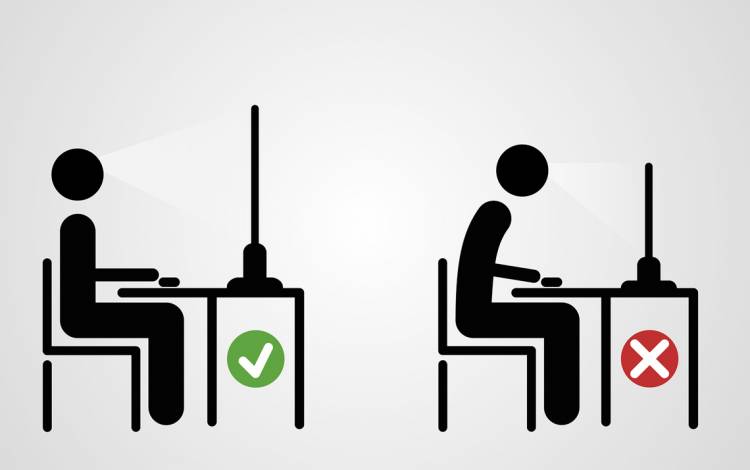
A comparison of proper ergonomic posture versus slouching at a desk.
Try InterviewWhisperer on your next interview
A native macOS assistant that hears the question and answers on your screen, invisible to the screen share. Your first 30 minutes of live answers are free, no card.
Practicing first? Try the free interview answer generator. It works on any phone.